Introduction to EzGYM
What EzGYM is
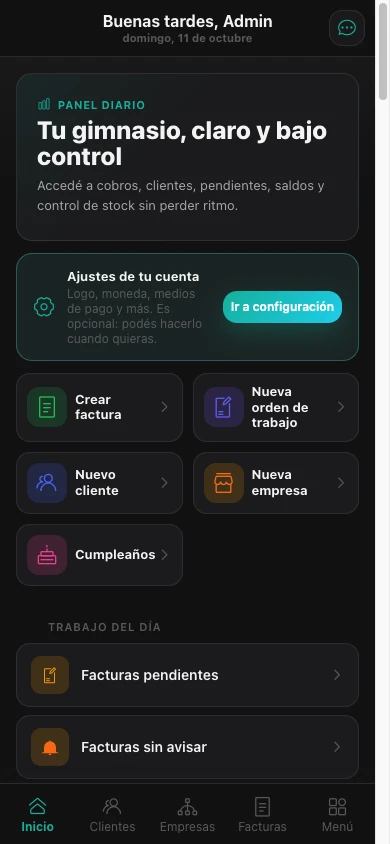
EzGYM is management software for gyms, academies, and training centers. It brings clients, plans, invoicing, collections, credit balances, products, exercises, and users together in a web application that works from a computer or a phone.
How a gym uses it
A typical flow is:
- Set up the gym's data, logo, currency, and taxes.
- Add plans, products, and categories.
- Register clients and assign them plans.
- The system can generate recurring invoices based on each plan's date.
- Record manual payments, apply credit balance, or receive payments through MercadoPago or PayPal if they are configured.
- If a client overpays, the excess can remain as a credit balance.
- If applicable, declare receipts with Biller/DGI or ARCA.
- Review late payers, debtors, and activity from the dashboard.
Main modules
| Module | What it is for |
|---|---|
| Dashboard | See quick actions, today's work, debt, due dates, and statistics |
| Clients | Look up members, contact details, address, account status, invoices, and credit balance |
| Plans | Set up memberships with tax, currency, prices, and late fees |
| Products | Sell items, one-off services, or extras with category, VAT, and currency |
| Invoices | Create, review, collect, print, or download receipts |
| Collections | Record payments from an invoice's detail, including payments with available balance |
| Credit balances | Credit overpayments, adjust credit, and use it to pay future invoices |
| Companies | Manage entities with legal name, tax ID, address, current account, and credit balance |
| Exercises | Keep a catalog of exercises with image, muscle group, and description |
| Users and roles | Give your team access with controlled permissions |
Integrations
| Integration | What it enables |
|---|---|
| Biller | Issue and declare e-Tickets and e-Invoices with DGI if you have an active account |
| ARCA | Issue Invoice A, B, C and notes with CAE for tenants in Argentina |
| MercadoPago | Generate payment links and record approved payments via webhook when configured |
| PayPal | Collect invoices online with PayPal and record approved captures via webhook |
| Send invoice notices and reminders when the client has a phone number and alerts enabled | |
| OpenStreetMap | Preview client and company addresses |
Recommended first flow
- Follow the quick start guide.
- Set up general data.
- Create plans.
- Add clients.
- Generate, or wait for, the first invoice.
- Record a payment.
Help
- WhatsApp: +598 93 754 188
- Email: [email protected]