How to set up Delta AC MAX with EzGYM
1. Create the charger in EzGYM
- Sign in to EzGYM, open EV Chargers and tap Add charger.
- Enter a Name (for example “Bay 1”) and the Max power (kW), then save.
- Connect “Bay 1” opens with the data you will enter in the Delta AC MAX:
- Server address (OCPP URL):
ws://devices.ezdis.net:9000/ev4k2p9x7q1m. - Secure address (wss://):
wss://charger.ezgym.net/ev4k2p9x7q1m. Use it if the charger supports a secure connection. - Charger identifier:
ev4k2p9x7q1m. On the charger it may be called ChargeBox ID, Charge Point ID or Identity. - Password, if the charger has that field. It is shown only once.
- Server address (OCPP URL):
If the charger has a separate field for the identifier, fill it in and still paste the full address: EzGYM recognizes the charger even if it adds its identifier or serial number to the end.
The data above is an example: use your charger's own. Each charger has its own identifier.
2. Configure the Delta AC MAX
The AC MAX is configured from a web browser, with its Web Configuration Tool.
- Connect to the charger from a computer or a phone:
- Over Wi-Fi: join the
Delta-<serial number>network (the key is on the last page of the quick installation guide) and openhttp://192.168.5.1. - With a network cable: set the computer to the fixed IP
192.168.123.101, mask255.255.255.0, and openhttp://192.168.123.123.
- Over Wi-Fi: join the
- Sign in with the user
adminand the password from the quick installation guide. After 5 failed attempts it locks for 5 minutes.
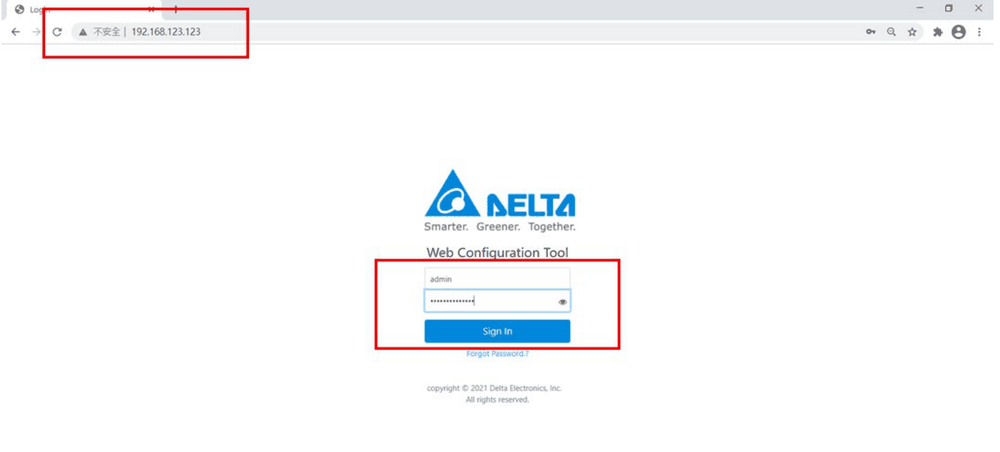
Source: Delta, “AC MAX EU Smart – Installation & Operating Manual v1.0.3”, p. 24
- Open Configuration and choose Operating with OCPP Central System. Fill in:
- Charge Box ID: your identifier, for example
ev4k2p9x7q1m. - Server URL: the full address,
wss://charger.ezgym.net/ev4k2p9x7q1m(orws://devices.ezdis.net:9000/ev4k2p9x7q1m). - OCPP Version: OCPP 1.6J.
- Charge Box ID: your identifier, for example
- Under Communication choose how it reaches the internet: Ethernet, Wifi (with your network details) or Cellular (with the SIM details). Tap Save and Restart Charger.
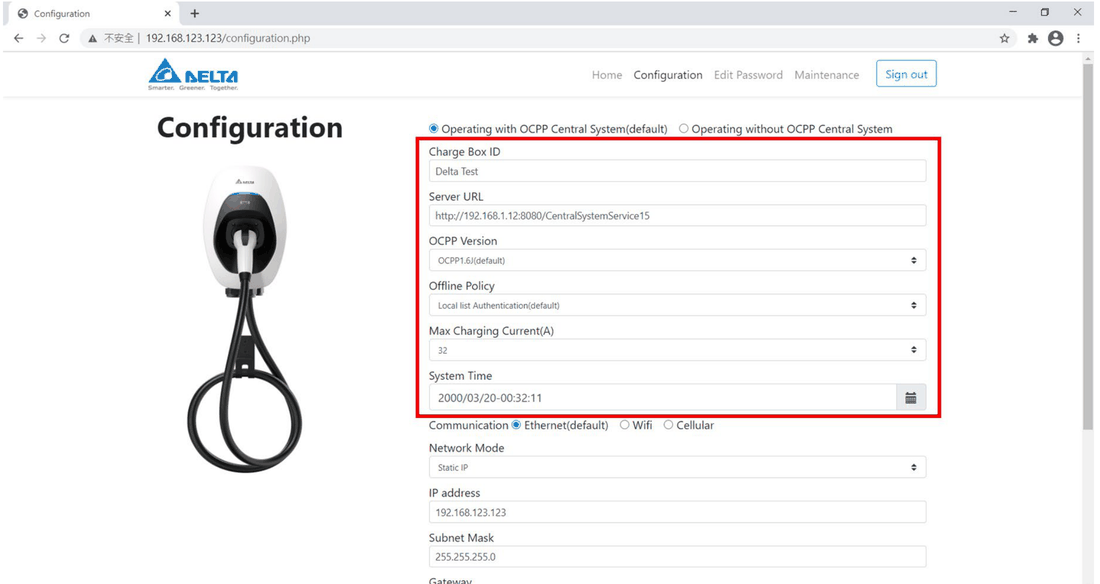
Source: Delta, “AC MAX EU Smart – Installation & Operating Manual v1.0.3”, p. 26
3. Check the connection
Once the charger restarts, within a minute or two it shows as Available in EzGYM, with its brand, model and firmware.
If it does not connect
- Check that the charger has internet access and that the address is complete, with no spaces.
- If the charger page shows “A charger is trying to connect from your network as…”, tap It is “Bay 1”: your charger uses its serial number as identifier and connects on its next attempt.
- If it says the server rejected it, the password does not match or the charger is not using the secure address (wss://).
Once connected you can start and stop sessions from EzGYM, register RFID cards, charge per kWh and see each person's usage: it is all in the EV chargers manual.
Manuals and documentation
Documentation reviewed on 2026-11-24. Compatibility depends on the variant and firmware.