# How to set up myenergi zappi with EzGYM
Documentation reviewed on 2026-11-24. Compatibility depends on the variant and firmware.
## Before configuring the charger
The zappi connects to OCPP through the myenergi cloud: it needs built-in WiFi (serial number starting with 2) and a myaccount.myenergi.com account with the location completed. Under Location → myenergi Products, click the zappi's OCPP Settings, choose «Other», enter the Backend URI wss://charger.ezgym.net/ (with the trailing slash), your ev… ID as ChargeboxID and Username, and the EzGYM password as Authorization Key.
## 1. Create the charger in EzGYM
1. Sign in to EzGYM, open **EV Chargers** and tap **Add charger**.
2. Enter a **Name** (for example “Bay 1”) and the **Max power (kW)**, then save.
3. **Connect “Bay 1”** opens with the data you will enter in the myenergi zappi:
- **Server address (OCPP URL)**: `ws://devices.ezdis.net:9000/ev4k2p9x7q1m`.
- **Secure address (wss://)**: `wss://charger.ezgym.net/ev4k2p9x7q1m`. Use it if the charger supports a secure connection.
- **Charger identifier**: `ev4k2p9x7q1m`. On the charger it may be called ChargeBox ID, Charge Point ID or Identity.
- **Password**, if the charger has that field. It is shown only once.
If the charger has a separate field for the identifier, fill it in and still paste the full address: EzGYM recognizes the charger even if it adds its identifier or serial number to the end.
The data above is an example: use your charger's own. Each charger has its own identifier.
## 2. Configure the myenergi zappi
The zappi is set up from the **myenergi myaccount** website (myaccount.myenergi.com), not on the charger: the myenergi cloud acts as the bridge to EzGYM. You need a zappi with built-in WiFi (its serial number starts with 2) and, in myaccount, the location already completed.
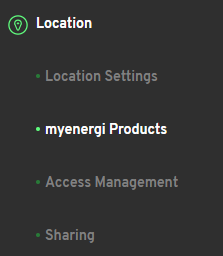
1. Sign in to myaccount.myenergi.com and, in the left-hand menu, open **Location → myenergi Products**. If you don't see **Location**, first complete the location details on the myaccount home screen.
Source: myenergi, “Setting up Open Charge Point Protocol (OCPP)”
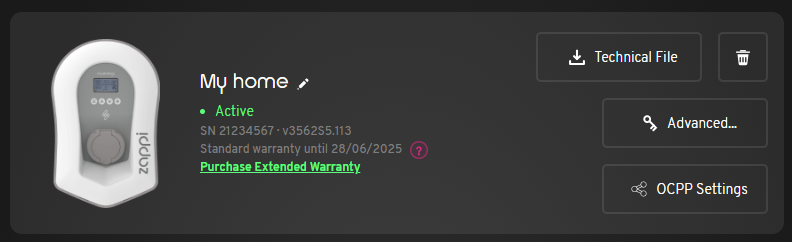
2. Find your zappi and click **OCPP Settings**.
Source: myenergi, “Setting up Open Charge Point Protocol (OCPP)”
3. In the list of management systems choose **Other** and fill in:
- **Backend URI**: `wss://charger.ezgym.net/`, with the trailing slash and **without** your ID (myenergi adds it).
- **ChargeboxID**: your ID, for example `ev4k2p9x7q1m`. It defaults to the zappi serial number; change it.
- **Username**: the same ID, `ev4k2p9x7q1m`.
- **Authorization Key**: the EzGYM password of that charger.
4. Accept the terms and conditions and click **Enable**.
## 3. Check the connection
Within a minute or two the charger shows as **Available** in EzGYM. If it doesn't, check that the Backend URI ends in `/` and that **ChargeboxID** and **Username** are exactly your `ev…` ID.
## If it does not connect
- Check that the charger has internet access and that the address is complete, with no spaces.
- If the charger page shows “A charger is trying to connect from your network as…”, tap **It is “Bay 1”**: your charger uses its serial number as identifier and connects on its next attempt.
- If it says the server rejected it, the password does not match or the charger is not using the secure address (wss://).
Once connected you can start and stop sessions from EzGYM, register RFID cards, charge per kWh and see each person's usage: it is all in the [EV chargers manual](https://www.ezgym.net/en/manual/1.0/guides/ev-chargers).
## Manuals and documentation
- [Configuration guide](https://support.myenergi.com/hc/en-gb/articles/35723298769041-Setting-up-Open-Charge-Point-Protocol-OCPP) — WEB
[Download the PDF tutorial](https://www.ezgym.net/en/free-ocpp-server/myenergi-zappi/tutorial.pdf)