# How to set up Alfen Eve Single / Double Pro-line with EzGYM
Documentation reviewed on 2026-11-24. Compatibility depends on the variant and firmware.
## Before configuring the charger
Alfen Eve Pro-line chargers are configured with Alfen’s ACE Service Installer software, used by installers. On the Connectivity tab choose “Define new backoffice…”, enter the URL wss://charger.ezgym.net/ev… and protocol OCPP 1.6, then restart the station. If the secure connection fails, check the certificates and make sure the network does not inspect the traffic.
## 1. Create the charger in EzGYM
1. Sign in to EzGYM, open **EV Chargers** and tap **Add charger**.
2. Enter a **Name** (for example “Bay 1”) and the **Max power (kW)**, then save.
3. **Connect “Bay 1”** opens with the data you will enter in the Alfen Eve Single / Double Pro-line:
- **Server address (OCPP URL)**: `ws://devices.ezdis.net:9000/ev4k2p9x7q1m`.
- **Secure address (wss://)**: `wss://charger.ezgym.net/ev4k2p9x7q1m`. Use it if the charger supports a secure connection.
- **Charger identifier**: `ev4k2p9x7q1m`. On the charger it may be called ChargeBox ID, Charge Point ID or Identity.
- **Password**, if the charger has that field. It is shown only once.
If the charger has a separate field for the identifier, fill it in and still paste the full address: EzGYM recognizes the charger even if it adds its identifier or serial number to the end.
The data above is an example: use your charger's own. Each charger has its own identifier.
## 2. Configure the Alfen Eve Single / Double Pro-line
Alfen chargers are configured on site with **ACE Service Installer**, a Windows program that connects to the charger. Using it requires an installer account requested from Alfen. These are Alfen's steps for chargers on firmware 6.0 or later; for firmware 5.8.1 or earlier, Alfen has a separate guide.
1. Connect the computer to the charger and open ACE Service Installer with your account.
2. Go to the **Connectivity → General** tab and, under **Backoffice preset**, choose **Manually enter backend settings**. Click **Save**.
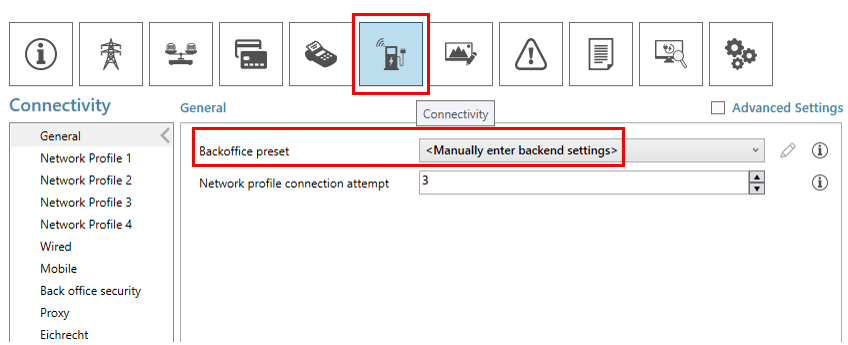
Source: Alfen, “KA-01098 Changing the Backoffice of a charging station with FW6.0 or higher”
3. In **Network Profile 1**, fill in:
- **Priority**: 1.
- **Connect method**: how it reaches the internet (for example **Wired (Ethernet)**).
- **Protocol**: **OCPP 1.6**.
- **CSMS URL**: the full address, `wss://charger.ezgym.net/ev4k2p9x7q1m` (or `ws://devices.ezdis.net:9000/ev4k2p9x7q1m`).
- **Security Profile**: **0: Default**, as in Alfen's screenshot.
4. Click **Save**. If it also uses mobile data, repeat in **Network Profile 2** and fill in the **Mobile** tab.
5. Restart the charger if it does not restart by itself.
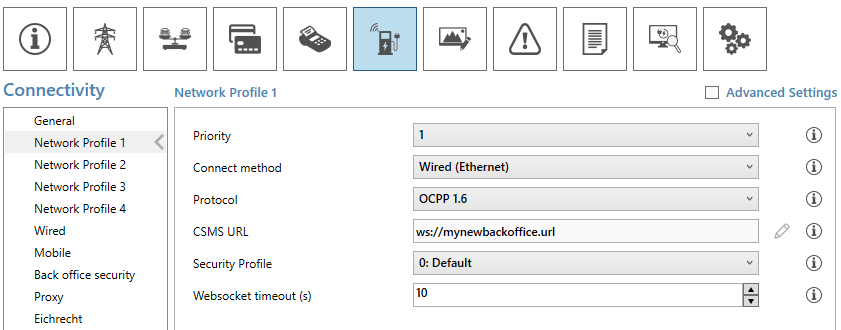
Source: Alfen, “KA-01098 Changing the Backoffice of a charging station with FW6.0 or higher”
## 3. Check the connection
Within a minute or two the charger shows as **Available** in EzGYM, even if it presents itself with its own number: we recognize it by the `ev…` identifier in the address.
## If it does not connect
- Check that the charger has internet access and that the address is complete, with no spaces.
- If the charger page shows “A charger is trying to connect from your network as…”, tap **It is “Bay 1”**: your charger uses its serial number as identifier and connects on its next attempt.
- If it says the server rejected it, the password does not match or the charger is not using the secure address (wss://).
Once connected you can start and stop sessions from EzGYM, register RFID cards, charge per kWh and see each person's usage: it is all in the [EV chargers manual](https://www.ezgym.net/en/manual/1.0/guides/ev-chargers).
## Manuals and documentation
- [Configuration guide](https://knowledge.alfen.com/categories/CAT-00924/CAT-00913/KA-01201) — WEB
- [OCPP technical reference](https://aceservice.alfen.com/en-us/knowledgebase/article/KA-01059) — WEB · EN · NG9xx / AHP
- [Configuration guide](https://knowledge.alfen.com/categories/CAT-00909/KA-01106) — WEB · EN · ACE Service Installer
[Download the PDF tutorial](https://www.ezgym.net/en/free-ocpp-server/alfen-eve-pro-line/tutorial.pdf)